Available with ArcGIS Maritime license.
With the S-100 Exchange Set Editor tool, you can produce exchange sets that contain multiple datasets and product specifications. An exchange catalog file must exist for each product specification when creating an exchange set composed of multiple product specifications. Individual exchange catalogs can be loaded into the editor and compiled in an exchange set. Following any edits to the exchange metadata, the datasets for each exchange catalog are automatically packaged together in the exchange set upon export.
To export an exchange set using the editor, your organization’s agency must be defined in the AgencyDetails.xml file. This file is used to define metadata and organizational details for hydrographic agencies in the ArcGIS Maritime production environment. Before working with the editor, ensure that the AgencyDetails.xml file has been appropriately configured.
Note:
An exchange set may still be generated without these required elements; however, real-world use is limited without a signed certificate. An S-100 ECDIS requires the presence of a valid certificate to load an S-100 exchange set.
To export an exchange set that contains multiple product specifications, complete the following steps in ArcGIS Pro:
- Activate the Maritime S-100 ribbon, if necessary, by adding an S-100 dataset to the active map.
- On the Maritime S-100 tab, in the S-100 Editing group, click S-100 Exchange Set Editor.
The S-100 Exchange Set Editor pane appears. You can load, edit, encrypt, and export exchange sets using this pane.
- In the editing section of the S-100 Exchange Set Editor pane, click Load.
- In the Microsoft File Explorer window, browse to an S-100 exchange catalog that you want to include in the package.
- Click the CATALOG.XML file, and click Open.
Note:
Normally, exchange set catalog files are named CATALOG.XML; however, HDF5 metadata files are named based on their data file base name in the following format: MD_<HDF5 data file base name>.XML.
- Repeat steps 1 through 5 above for any additional exchange catalogs from different product specifications that you want to include.
The productSpecification element allows you to modify attributes that are shared by all datasets in the product specification.
- To view its child elements, expand the tree view.
A child element is populated for every unique product specification loaded into the editor.
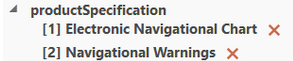
- To modify the exchange metadata associated with individual product specifications, click the child element (for example, [1] Electronic Navigational Chart), and populate its attributes in the editing section.

The datasetDiscoveryMetadata element contains the attributes associated with each individual dataset. A child element is created for every unique dataset loaded into the editor. These elements appear in the order they are loaded.
- To modify the exchange metadata associated with individual datasets, click the child element, such as [1] file://S-101/DATASET_FILES/<filename>.
Unlike productSpecification, there are many child elements associated with instances of datasetDiscoveryMetadata. Expand the dataset elements to reveal the associated elements.

Note:
To add support file and catalog discovery metadata, click Add a new support file
 next to the respective child elements of datasetDiscoveryMetadata. In the File Explorer window, browse to the location of the metadata file, and click Open. The file can be edited and included in the exported exchange set.
To remove a dataset from the exchange set, click Remove item
 .
. - To export the complete exchange set, click Export, and browse to the location where you want to save the exchange set.
- Click Select Folder to export the exchange set to the chosen location.
- In File Explorer, browse to the specified location of the exported exchange set to review it.
At the export location, you will find the S100_ROOT folder, which is the top-level directory for exchange sets. The S100_ROOT folder contains the directories that store the datasets associated with each product specification, and the exchange catalogue.